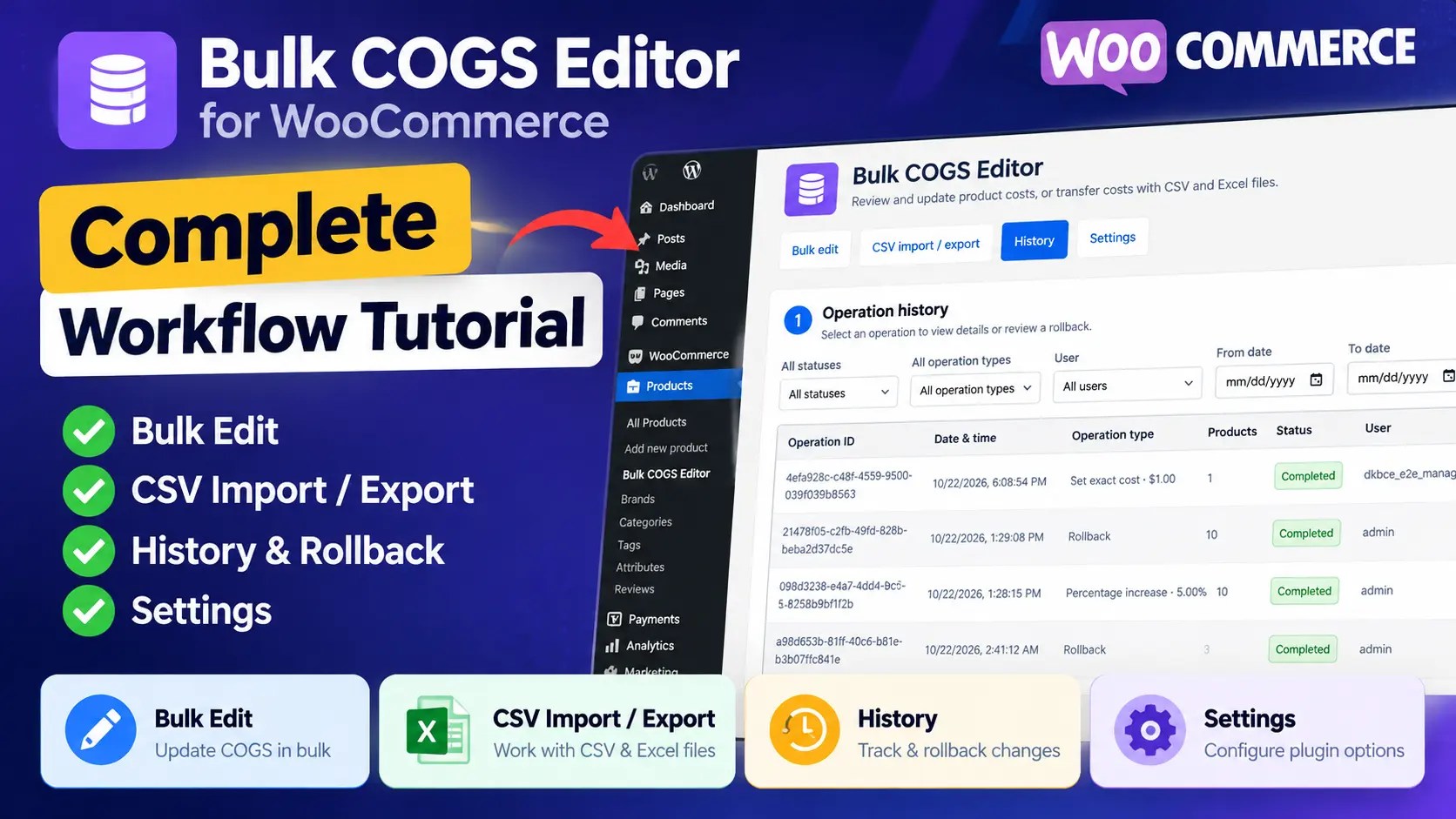
Need to bulk edit WooCommerce COGS (Cost of Goods Sold) after a supplier price change? Bulk COGS Editor for WooCommerce helps you filter products and variations, save reusable presets, import costs from CSV or Excel (.xlsx), preview every adjustment, and run cost updates in background batches—without changing selling prices.
Updated for plugin version 1.3.1 (November 2026): Follow the redesigned three-step bulk editor, new account-based filter presets, advanced COGS filters, per-product cost overrides, optional rollback history, and COGS health notices. The tutorial below shows the current interface.
Before starting, enable native WooCommerce Cost of Goods Sold. For the setting and product-cost behavior, see the official WooCommerce Cost of Goods Sold documentation. The plugin requires WooCommerce 10.3 or later with native COGS enabled.

The video walkthrough introduces the workflow. Note: it may show an earlier plugin interface; use the updated screenshots and instructions below for version 1.3.1.
⚡ Performance Benchmark: 10,000 Products in 15m 24s
Managing an enterprise catalog? Bulk COGS Editor processes updates through Action Scheduler background batches. In a previously reported WP-CLI benchmark, 10,000 product costs were updated in 15m 24s with zero skipped and zero failed. This is an earlier measured run, not a new 1.3.1 benchmark or a guaranteed processing time.
Jump to: Bulk edit costs · Export COGS to CSV · Import CSV or Excel · History · Rollback · Saved filter presets · Settings and COGS health · FAQ
Bulk edit WooCommerce product costs
Step 1 — Open the redesigned bulk editor
Go to Products → Bulk COGS Editor → Bulk edit. Version 1.3.1 arranges the workflow in three full-width sections: Select products, Set cost update, and Products & review. The editor follows your WordPress admin color scheme, and the active tab can be bookmarked or restored with browser Back and Forward.

| Editor tab | What you can do |
|---|---|
| Bulk edit | Filter products, calculate a cost adjustment, and review selections. |
| Import / export | Import COGS from CSV or XLSX; export product costs as CSV. |
| History | Review operation results, recorded changes, and eligible rollbacks. |
| Presets | Rename, edit, and delete your account’s saved product filters. |
| Settings | Choose rollback defaults, retention, health notices, and recovery options. |
Step 2 — Find WooCommerce products and choose a cost action
Search by product name, SKU, GTIN, ISBN, EAN, or UPC. Narrow the catalog by category or product type, then open More filters for stock status, brand, prices, or stored COGS. Click Find products to load the matches. You can filter costs that are:
- Empty (no stored cost) or Zero (explicitly saved as 0).
- Greater than zero, or Empty or zero together.
- Greater than selling price (including an active sale price).
- Greater than regular price (ignoring the sale discount).
Price comparisons omit products that have no relevant selling price. Numeric ranges are also available for applicable COGS conditions. In Set cost update, choose to set an exact cost, increase or decrease by a fixed amount or percentage, or clear the saved cost. Variations can have separate cost records.
| Cost adjustment | Example starting at $10.00 |
|---|---|
| Set exact cost to $12.00 | $12.00 |
| Increase by 5.5% | $10.55 |
| Decrease by 10% | $9.00 |
| Increase by $2.00 | $12.00 |
| Decrease by $2.00 | $8.00 |
| Clear saved COGS | No stored cost |

Step 3 — Select matching products and edit the cost preview
Compare Selling price, Regular price, Current COGS, New COGS, and each difference. Use Manage columns to customize the table, select individual rows, select all matches, or use Select a range for the first or last group of results. Selection must be explicit.

Need an exception to the bulk adjustment? Select the pencil beside an individual New COGS value. Save it, cancel editing, or reset it to the Step 2 calculation. You can keep up to 500 individual overrides per bulk preview; they persist while navigating preview pages. Changing filters or the bulk cost action clears these overrides.
Reset filters keeps your draft cost action, Deselect all products clears the selected rows, and Start over clears the filters, selection, action, and note.
Step 4 — Review and confirm your WooCommerce COGS update
Add an optional operation note and choose Review changes. Check the selected product count, the calculation, any individual overrides, and how many rows were inspected in the preview. Review coverage is not the same as the total selection.
At confirmation, decide whether to Keep rollback history. When enabled, the plugin retains original costs and detailed change records for eligible rollback during your retention window. When disabled, it keeps operation results and retry protection but cannot roll back this update or show detailed item-level cost changes.


Step 5 — Follow the background update progress
Confirmed changes are applied in Action Scheduler batches. Watch processed, updated, skipped, and failed counts and elapsed time. Time remaining is only an estimate and may be unavailable until the worker has enough progress. You can leave the page and return later if the site’s background workers continue running.

Stop remaining updates requests cancellation; costs already saved remain changed. The operation’s final result is the authoritative record.
Step 6 — Check the completed bulk COGS operation
Review the completion summary, including updated, skipped, and failed totals. You can inspect results or recorded changes when history was retained and begin a fresh update. Screenshot figures and durations represent individual example runs, not guaranteed timings.

Export WooCommerce COGS to CSV and prepare a spreadsheet
Step 7 — Choose product filters and CSV export columns
Open Import / export → Export. Filter matching products and choose the export columns. Include at least one identifier—Product ID or SKU—so you can import the costs back accurately. Export reads existing product records and never changes costs.

| Export column | Purpose |
|---|---|
| Product ID or SKU | Identify the intended product or variation on import. |
| Product name and type | Make the spreadsheet easier to audit. |
| Current COGS | Compare the existing product cost. |
| Regular and selling price | Review margin context. |
| new_cogs | Leave space to enter replacement costs for import. |
Step 8 — Review and confirm the export selection
Inspect the selected products, product identifier column, and data fields. Confirm the CSV export only when the selection and columns are correct. This stage does not change WooCommerce products.

Step 9 — Monitor CSV export preparation
The export panel shows how the CSV file is being prepared. Keep the page open while it is built, and use Cancel export if you need to stop this download preparation.

Step 10 — Download the completed CSV file
After preparation finishes, click Download CSV. The elapsed time depends on your product count, server, and export configuration.

Step 11 — Review the exported product cost spreadsheet
Open the CSV in Excel or another spreadsheet editor. Keep the product IDs and SKUs unchanged, and use the stored COGS and price columns to check what should be updated.

Step 12 — Enter new COGS values for import
Add proposed costs to the new_cogs column. You can calculate supplier adjustments with spreadsheet formulas, but replace formulas with values before importing XLSX. Keep SKUs as text, especially if they contain leading zeros. The plugin will validate proposed costs before changing products.

Import WooCommerce COGS from CSV or Excel (XLSX)
Step 13 — Upload a CSV or Excel cost file
Choose Import / export → Import, then upload a UTF-8 CSV or XLSX file. Check the file requirements and downloadable template. Your WordPress installation determines the maximum supported upload size.

| File requirement | How to prepare it |
|---|---|
| Identifier | Supply id or sku; when both are present, they must match the same product. |
| New cost | Use new_cogs; legacy cogs is accepted if new_cogs is absent. |
| CSV | Use UTF-8 and numeric cost values without currency symbols. |
| XLSX | Use the first worksheet and replace spreadsheet formulas with values. |
| SKU formatting | Keep SKUs as text to preserve leading zeros. |
| Blank new_cogs | The row is skipped; a blank value does not clear the stored cost. |
Step 14 — Prepare and validate the import preview
Click Validate file to prepare the import preview. The plugin checks rows in background batches without modifying costs. The progress is an estimate until all rows have been read. You can request Cancel preparation if you need to stop the validation stage.

Step 15 — Review imported COGS and edit individual values
Compare current costs, proposed New COGS, differences, and row readiness. Download validation error details for invalid rows. Click the pencil on a valid product’s New COGS to correct a staged cost; Save applies it to the preview, while Cancel leaves the staged value unchanged.

Saved import edits persist across preview pages. Unlike the bulk editor, import preview overrides are not subject to the bulk 500-edit limit or the Reset to Step 2 action. Staging or editing a preview does not change any product cost.
Step 16 — Confirm the imported product costs
Select the products you intend to update, add an optional note, and click Review changes. Confirm the selected count, preview coverage, and staged cost values, then choose whether to keep rollback history. Without retained history, imported cost changes are not eligible for plugin rollback.

Step 17 — Understand the import collection stage
After confirmation, the plugin prepares the set of matched product records for the background update. Collecting or validating records is distinct from actually saving costs. Check the operation status before concluding that a product has been updated.
Step 18 — Follow the confirmed import update
The background operation then writes the selected COGS values in batches. Follow its processed, updated, skipped, and failed counts through the editor. You can return to the screen later, but Stop remaining updates does not undo already saved costs.
Step 19 — Inspect the final import result and error reports
Check the final operation counts and download a report if any products were skipped, failed, or unprocessed. A clean import with no such rows does not have an error report to download. Import duration varies by file size, selected products, hosting, and background workers.
| Import stage | Are WooCommerce product costs changed? |
|---|---|
| File export and spreadsheet editing | No |
| Import upload, validation, and preview | No |
| Collecting matching product records | Not during the collection stage |
| Confirmed background cost update | Yes, as products are processed and saved |
| Cancel remaining updates | Previously saved changes are kept |
Review operation History and roll back eligible changes
Step 20 — Find a completed COGS update in History
Open History to review completed, cancelled, or failed operations. Filter by status, operation type, user, or dates, or search by operation ID, note, or product ID. The action-first layout helps distinguish adjustments, file imports, exports, and rollbacks.

Step 21 — Examine the operation and its recorded product changes
Click View details to inspect the selected operation. Check its type, status, product counts, author, note, duration, and recorded changes where available. History timestamps and rollback deadlines use your WordPress date and time formats and site timezone. You can return to the list while preserving its context or reopen a specific operation URL.

Operations completed with No rollback history keep operation results but have no detailed item-level change log or rollback option.
Step 22 — Review original COGS and rollback policy
The rollback review compares Current COGS (now) with Rollback to (original). Check the retention deadline, effective policy, and any warning. Use Overwrite current costs when you need to restore recorded originals regardless of later edits, or Skip changed products to preserve later changes. Confirm only when the target records and policy are correct.

Step 23 — Monitor rollback startup
A rollback starts as a separate background operation. Return to History to inspect its startup status and total number of eligible records. An initial progress display may have no time estimate until workers advance.
Step 24 — Track rollback progress
Check updated, skipped, and failed totals as restoration batches finish. The remaining-time estimate can change or remain hidden until enough processing data is available. You may request cancellation, but it will not undo costs already restored.
Step 25 — Check the near-completion status
A nearly full progress bar is not proof that the rollback has finished. Review the actual status and recorded outcomes before starting another update or treating every original value as restored.
Step 26 — Verify completed rollback results
After the rollback completes, check its final outcomes and spot-check the intended products. Expired original cost records and operations without rollback history cannot be restored through this workflow.

Save and manage reusable WooCommerce product filter presets
Version 1.3.1 includes account-based filter presets for recurring product groups—such as suppliers, brands, categories, or products missing COGS. Presets save filter rules for your account on this site, so you can load them across browsers and devices. They do not save fixed product IDs, a cost action, or an automatic cost update.
Save product filters as a preset
- Open Bulk edit and select the product filters.
- Expand Saved filters under Select products.
- Enter a unique name such as Hoodies — supplier review.
- Click Save filters.
Load saved filters without updating costs
Choose the preset under Saved filters and click Load filters. Click Find products to refresh matching products. Then configure the cost action and product selection for that run. Loading the preset alone never changes costs.
Edit, rename, or delete presets

In the new Presets tab, review saved names and creation dates. Choose Edit to rename or modify the filter rules, then save changes or cancel editing.

Use Delete for one preset, or select several and delete them together after checking the confirmation. Deleting a preset never changes product costs.


Upgrading from an older release? Existing browser-stored or user-meta presets are not migrated to the new account-based preset database. Recreate any filter rules you still need.
Configure COGS settings, rollback defaults, and recovery
Step 27 — Set history retention, rollback mode, and COGS health notices
Open Settings, choose your defaults, and click Save settings. Your chosen Default rollback mode preselects Keep rollback history or No rollback history, and you can change that choice for each confirmed bulk update or import.

| Setting | Behavior |
|---|---|
| Default rollback mode | Choose whether to retain original costs by default; override at confirmation. |
| History retention | Choose 30 days, 90 days, or a custom period; shorter retention can also affect existing records. |
| Overwrite current costs | On rollback, restore original costs even if changed later. |
| Skip changed products | On rollback, leave products with subsequent cost edits untouched. |
| COGS health notice location | Show the notices only inside the editor or throughout WordPress admin. |
COGS health notices: The plugin scans published products and variations for missing costs or costs above the current selling price. Results are cached for approximately one hour, so changes may not appear immediately. Use Refresh now to request a background scan, or dismiss the notice for your account for one hour. A scan never changes costs.
Step 28 — Recover from a stuck operation with force clear
Use Force clear current operation only if normal cancellation cannot recover a stuck workflow. The confirmation warns that current operation and import references will be cleared and cancellation requested. A worker may continue briefly; already saved product costs are not reversed. History and rollback records remain available.

For worker diagnostics, see the Action Scheduler administration documentation. Always check History before starting another update.
| Action | Stops or clears the operation? | Restores original costs? |
|---|---|---|
| Stop remaining updates or cancel rollback | Requests cancellation; current batches may finish. | No |
| Force clear current operation | Clears current references and requests cancellation. | No |
| Confirmed eligible rollback | Starts a separate restoration job. | Yes, if original values are retained and the rollback policy permits. |
WooCommerce COGS bulk editing: frequently asked questions
Can I bulk change product costs without changing selling prices?
Yes. Bulk COGS Editor works with WooCommerce’s native Cost of Goods Sold values. Its cost updates do not edit the store’s regular prices, sale prices, or existing order data.
Does the plugin work with WooCommerce variable products?
Yes. Products and their variations can carry separate costs, and variations are processed as separate records. Preview your selection before updating.
Can I import product costs from Excel instead of CSV?
Yes. CSV and XLSX uploads are supported. Use id or sku to identify products and new_cogs for new costs. Exports are CSV.
What happens if I disable rollback history?
The update still records its result and protects against repeated processing, but it does not retain original item costs for rollback or the detailed change history. Choose the rollback mode carefully at confirmation.
Are saved filter presets shared between devices?
Yes, for the same WordPress user account on the same site. Presets save the filtering rules, not the proposed cost action or an automatically scheduled update.
Does the plugin require WP-CLI for large COGS updates?
No. WooCommerce’s normal Action Scheduler runner can process the updates. WP-CLI is optional for stores whose operators want to run queued batches from the command line.
Start managing WooCommerce COGS safely
Version 1.3.1 adds a clearer three-stage editor, reusable filter presets, inline cost corrections, optional rollback history, and background-cached COGS health notices. For a first run, filter a small product group, preview proposed costs, keep rollback history, then confirm and monitor the results.
Download Bulk COGS Editor for WooCommerce on WordPress.org. You can also review the source and release history on GitHub. For another WordPress administration utility, see Quick Plugin Switcher.
Leave a Reply